

Joomla Installation
- Download Add Custom Javascript.
- In the Joomla control panel select: System > Extensions in the Install section.
- In the Upload Package File section click "Or browse for file" and locate the "add-custom-php-3.0.1.zip" file.
- Then click Open to upload the file and complete the installation.
Configuration
To configure Add Custom PHP go to the Joomla control panel and select: System > Manage > Plugins. Locate "System - Add Custom PHP" in the list and click it. You can see the Parameters of the plugin as below:
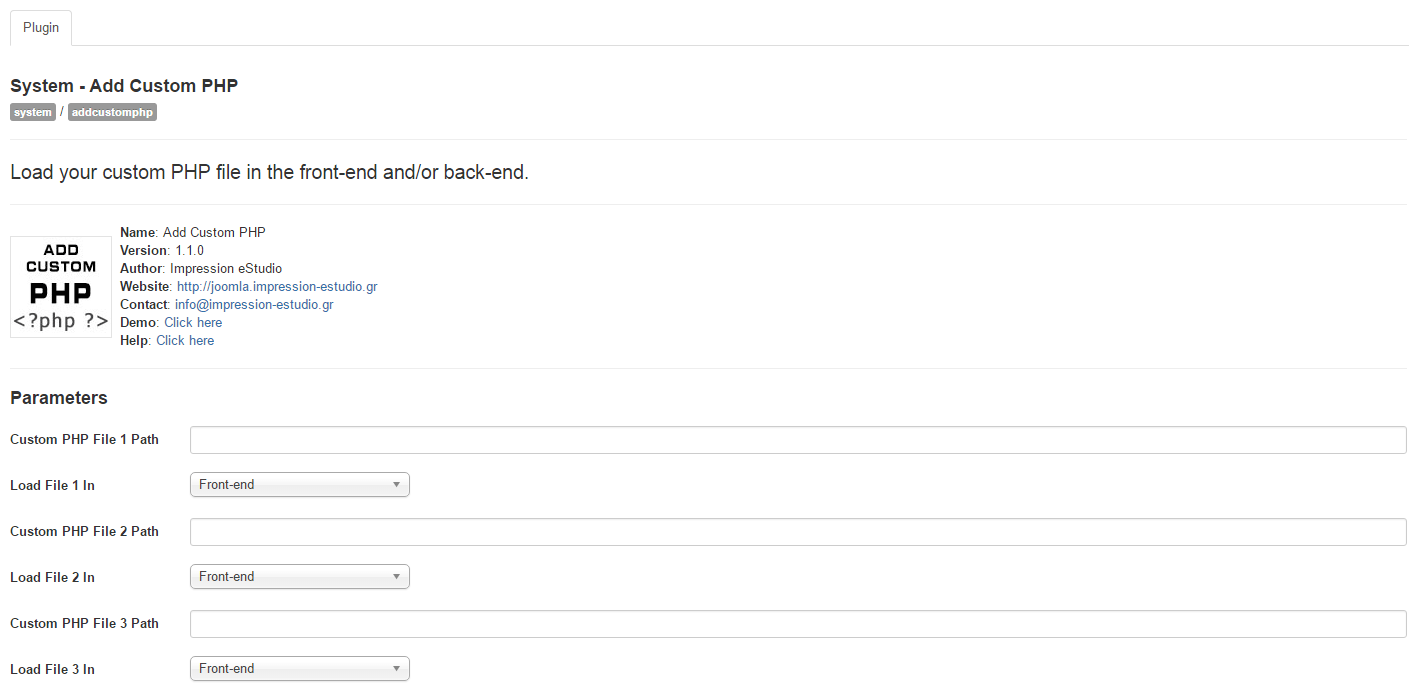
Parameters
The Add Custom PHP plugin has the following parameters:
- After Initialise: Enable the PHP code to run on the 'After Initialise' event. This code will run after the framework has loaded and the application initialize method has been called.
- PHP Code (After Initialise): Fill in your custom PHP code. Do not include <?php and ?>.
- After Route: Enable the PHP code to run on the 'After Route' event. This code will run after the framework has loaded and initialized and the router has routed the client request
- PHP Code (After Route): Fill in your custom PHP code. Do not include <?php and ?>.
- After Dispatch: Enable the PHP code to run on the 'After Dispatch' event. This code will run after the framework has dispatched the application
- PHP Code (After Dispatch): Fill in your custom PHP code. Do not include <?php and ?>.
- Before Render: Enable the PHP code to run on the 'Before Render' event. This code will run immediately before the framework has rendered the application (e.g. before the body is ready).
- PHP Code (Before Render): Fill in your custom PHP code. Do not include <?php and ?>.
- Before Compile Head: Enable the PHP code to run on the 'Before Compile Head' event. This code will run before the framework creates the Head section of the Document.
- PHP Code (Before Compile Head): Fill in your custom PHP code. Do not include <?php and ?>.
- After Render: Enable the PHP code to run on the 'After Render' event. This code will run immediately after the framework has rendered the application (e.g. after the body is ready).
- PHP Code (After Render): Fill in your custom PHP code. Do not include <?php and ?>.
Uninstall from Joomla
- Select: System > Extensions in the "Manage" section.
- Locate the line with name "Add Custom PHP" in the list.
- Check the line and click "Uninstall".
Full Customization
If you need full customization of your website then you can use all the following free extensions: